ReloadOnChange in Optimizely CMS: The Attribute Nobody Talks About
ReloadOnChange in Optimizely CMS: The Attribute Nobody Talks About
By William Parr
6 min read
Optimizely CMS has a little-known attribute that reloads the editor when a property changes — perfect for dependent dropdowns and checkboxes. Here is how I found it, proved it worked, and shipped it on a Product Detail Page.

- Authors

- Name
- William Parr
Last year I was knee-deep in a headless Optimizely CMS 12 project — .NET backend, Next.js front-end, Optimizely Graph for delivery — and I hit a problem that sounded simple on paper.
When the editor picks product A instead of product B, the checkboxes below should update.
That is not a front-end problem. It is a CMS editing UI problem. And my first instinct — write a custom Dojo widget — turned out to be the long way around.
This post is about the shortcut I wish I had known about sooner: [ReloadOnChange].
TL;DR: This post is for developers building the Optimizely CMS editing experience — especially when dropdowns or checkbox lists need to update based on another field on the same content item. Put [ReloadOnChange] on the driving field (the one whose value should trigger a refresh), not on the dependent field. When that driving field changes, the CMS editor reloads and your ISelectionFactory runs again, so options rebuild immediately without a manual save.
What the acronym? Throughout this post, OPE means On-Page Editing — Optimizely's mode for editing content directly on the rendered page preview.
The problem: one template, many SKUs
The client needed Product Detail Pages (PDPs). Not one page per SKU — one page per group of SKUs that share the same layout.
Think of it like this:
- A brand might have a PDP for a product called "999 Bold".
- Under that PDP live dozens of SKUs: different widths, colours, article numbers.
- Each SKU has its own PIM data (name, specs, images), but they all use the same block layout on the page.
In Optimizely we modelled that as:
- A PDP content type — the template. Editors configure blocks, highlighted specs, page content, and so on.
- SKU data stored on separate content items in the CMS (no public URL of their own).
- SKU selection blocks on the PDP that link to either a single product or an entire collection/product group.
- A Next.js front-end that generates virtual child URLs per SKU — e.g.
/collection/999-bold/12345678— even though Optimizely only knows about/collection/999-bold/.
That architecture is reasonable for headless. It keeps the CMS tidy and avoids cloning the same page layout fifty times.
It also creates an editing UX challenge: fields on the PDP (and on blocks within it) need to react to which SKUs are linked.
Examples we had to support:
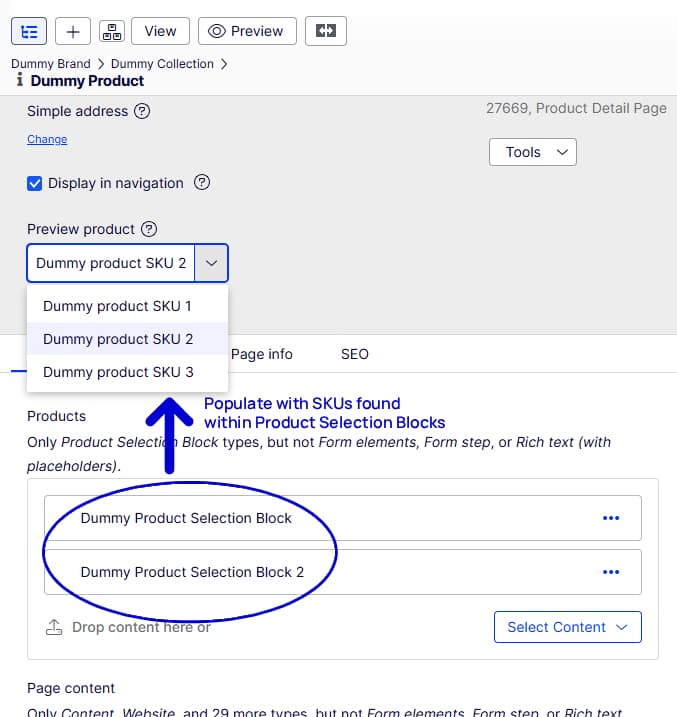
- A preview dropdown in the CMS settings panel, listing every SKU currently linked on the page, so an editor can pick which one to preview.
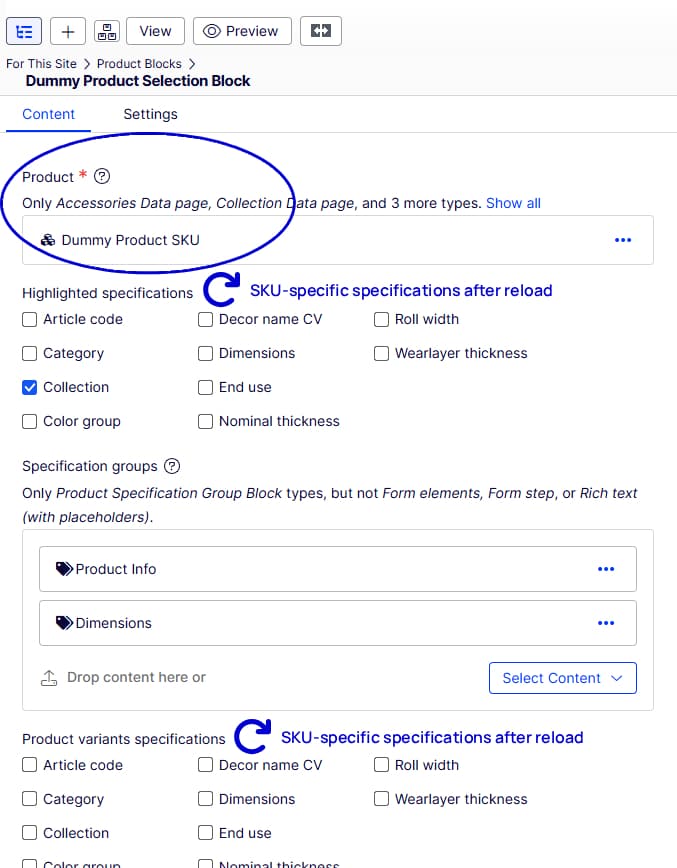
- Specification checkboxes on each SKU block, populated from the PIM data of the linked product.
- Specification group blocks nested inside a SKU block, where the available spec types still depend on the parent block's product reference.
All of that needs fresh data in the CMS UI the moment an upstream choice changes. Waiting until save-and-reload is a frustrating editor experience.
How I found ReloadOnChange (and why it is oddly obscure)
My first plan was a custom EditorDescriptor with a Dojo-based property editor and probably an API endpoint to fetch spec types. That is a valid approach — Optimizely has been doing custom UI that way for years — but it is also a fair bit of work for what is essentially: "re-read the other field and rebuild the dropdown."
While researching, I stumbled on Bartosz Sekula's blog post from July 2021. He described a (then-)new attribute in EPiServer.Cms.Shell.UI.ObjectEditing that forces the current editing context to reload when a property value changes. Pair it with an ISelectionFactory, and dependent fields can repopulate without custom JavaScript.
The feature landed in CMS UI 11.36.0 (see release notes). Well-established, so that was encouraging!
What was less encouraging: official documentation. As of writing, the Property attributes page mentions ReloadOnChange in roughly four sentences. No code sample. No "when to use this" guide. Forum threads reference it occasionally, but that is about it.
So yes — it exists, it is official, and it is surprisingly easy to miss.
What it actually does (and what it does not)
Decorating a property with [ReloadOnChange] tells Optimizely: when this value changes, reload the CMS UI for the current content item. Selection factories run again. Dependent dropdowns and checkbox lists refresh. In classic MVC setups, OPE templates can re-render too.
It does not:
- Automatically wire up your headless preview or OPE iframe
- Work in the Quick Edit dialog (the lightweight inline dialog for blocks — no autosave there)
- Fire during initial content creation — there is nothing to refresh yet
That last point mattered for us. We paired [ReloadOnChange] with a custom [HideOnContentCreate] attribute and a metadata extender that relaxes validation while the page is still being created. Editors are not forced to add SKU blocks before the content item exists.
PoC 1: preview dropdown driven by linked SKUs
Before we actually got to work incorporating this attribute into our application we first wanted to make sure it actually functioned properly and provided an intuitive user experience in the CMS UI.
The first proof of concept was the preview SKU selector in the CMS settings panel.
The idea: editors link SKUs on the Content tab. A dropdown on the settings panel lists those SKUs. Changing the selection would eventually drive Preview / OPE on the headless front-end (more on that later).
My early PoC looked roughly like this:
public class ProductDetailPage : PageData
{
    [SelectOne(SelectionFactoryType = typeof(SelectedSkuSelectionFactory))]
    [Display(Name = "Preview SKU", GroupName = "EPiServerCMS_SettingsPanel", Order = 200)]
    public virtual string? PreviewSku { get; set; }

    [CultureSpecific]
    [AllowedTypes(typeof(ProductDataPage))]
    [Display(Name = "Products", GroupName = SystemTabNames.Content, Order = 200)]
    [ReloadOnChange]
    public virtual ContentArea? Products { get; set; }
}

public class SelectedSkuSelectionFactory : ISelectionFactory
{
    public IEnumerable<ISelectItem> GetSelections(ExtendedMetadata metadata)
    {
        var content = metadata.FindOwnerContent();
        if (content is not ProductDetailPage pdp) return [];

        var selections = new List<SelectItem>
        {
            new() { Text = "Select an SKU to preview", Value = "" }
        };

        // Resolve linked SKU blocks → product names from PIM
        foreach (var product in ResolveProductsFromSkuBlocks(pdp.Products))
        {
            selections.Add(new SelectItem
            {
                Text = product.Name,
                Value = product.ContentLinkId.ToString()
            });
        }

        return selections;
    }
}
The important bit: [ReloadOnChange] sits on Products, not on the preview dropdown. When an editor adds or removes a SKU block, the CMS UI reloads and the selection factory rebuilds the preview list. Without that attribute, the dropdown stays empty until a manual save.
PoC 2: specification checkboxes with a custom editor
The second PoC tackled a trickier requirement: let editors pick which PIM specifications to show on the PDP, grouped with translatable labels they define in the CMS.
I briefly considered modelling every spec as a child content node under the product. Semantically odd, and it would mean IContentLoader gymnastics everywhere. The PIM data already lived on the product content item.
Instead I put a list of spec objects on the product type and used a selection factory on the PDP:
public class ProductDetailPage : PageData
{
    [CultureSpecific]
    [AllowedTypes(typeof(ProductDataPage))]
    [Display(Name = "Product", GroupName = SystemTabNames.Content, Order = 200)]
    [ReloadOnChange]
    public virtual ContentReference? Product { get; set; }

    [CultureSpecific]
    [SelectMany(SelectionFactoryType = typeof(ProductAttributesSelectionFactory))]
    [Display(Name = "Attributes", GroupName = SystemTabNames.Content, Order = 300)]
    public virtual string? Attributes { get; set; }
}

public class ProductAttributesSelectionFactory : ISelectionFactory
{
    private readonly IContentLoader _contentLoader;

    public ProductAttributesSelectionFactory(IContentLoader contentLoader)
    {
        _contentLoader = contentLoader;
    }

    public IEnumerable<ISelectItem> GetSelections(ExtendedMetadata metadata)
    {
        var content = metadata.FindOwnerContent();
        var property = content?.Property[nameof(ProductDetailPage.Product)];

        if (property?.Value is not ContentReference sourcePage
            || ContentReference.IsNullOrEmpty(sourcePage))
        {
            return [];
        }

        var productData = _contentLoader.Get<ProductDataPage>(sourcePage);

        return productData.Specifications.Select(spec => new SelectItem
        {
            Text = spec.Type,
            Value = spec.Type
        });
    }
}
Drop a product reference, the CMS UI reloads, checkboxes appear. No Dojo. No API endpoint. This seemed far easier than I was expecting!
This PoC pattern — reference field + [ReloadOnChange] + ISelectionFactory — became the foundation for the production implementation, even though the final content model evolved (more on that below).
Shipping it: two ReloadOnChange touchpoints
The production PDP ended up more nuanced than either PoC, but the same mechanism appears in exactly two places.
Pattern A: product reference → specification checkboxes
Each SKU on the PDP is a Product SKU block nested in a content area. The block has a required Product content reference (single product, collection, or product group). When that changes, spec-related fields need fresh options.
[Required]
[CultureSpecific]
[ReloadOnChange]
[AllowedTypes(typeof(ProductPage), typeof(CollectionDataPage), /* ... */)]
[Display(Name = "Product", GroupName = SystemTabNames.Content, Order = 10)]
public virtual ContentReference Product { get; set; }

[CultureSpecific]
[ElementsRange(0, 3)]
[SelectMany(SelectionFactoryType = typeof(ProductSpecificationSelectionFactory))]
[Display(Name = "Highlighted specifications", GroupName = SystemTabNames.Content, Order = 20)]
public virtual string? HighlightedSpecifications { get; set; }

// ProductSpecificationSelectionFactory omitted for brevity, but follows the same pattern as in the PoCs -- with a lot more project-specific logic
The selection factory resolves the linked product (or the first descendant product, if a collection was chosen) and maps PIM specifications for that specific SKU to checkbox options the editor can choose to display on the customer-facing page.
Specification group blocks are a wrinkle: they sit one level deeper and do not carry their own [ReloadOnChange]. The factory walks up to the parent SKU block to read its Product reference. The CMS UI does not reload when you are editing the nested block in isolation — but the options are still correct because the factory reads context, not just the current content item.
Pattern B: SKU content area → preview dropdown
On the PDP itself:
[CultureSpecific]
[SelectOne(SelectionFactoryType = typeof(ProductPreviewSelectionFactory))]
[Display(Name = "Preview product", GroupName = SystemTabNames.PageHeader, Order = 10)]
public virtual string? PreviewProduct { get; set; }

[CultureSpecific]
[ReloadOnChange]
[HideOnContentCreate]
[ElementsRange(1, int.MaxValue)]
[AllowedTypes(typeof(ProductSkuBlock))]
[Display(Name = "Products", GroupName = SystemTabNames.Content, Order = 10)]
public virtual ContentArea? Products { get; set; }

// ProductPreviewSelectionFactory omitted for brevity, but follows the same pattern as in the PoCs -- with a lot more project-specific logic
Same trick as PoC 1, refined: Products is a content area of SKU blocks (not a flat reference list), and the preview factory resolves block GUIDs to product names via a service layer.
How the pieces connect
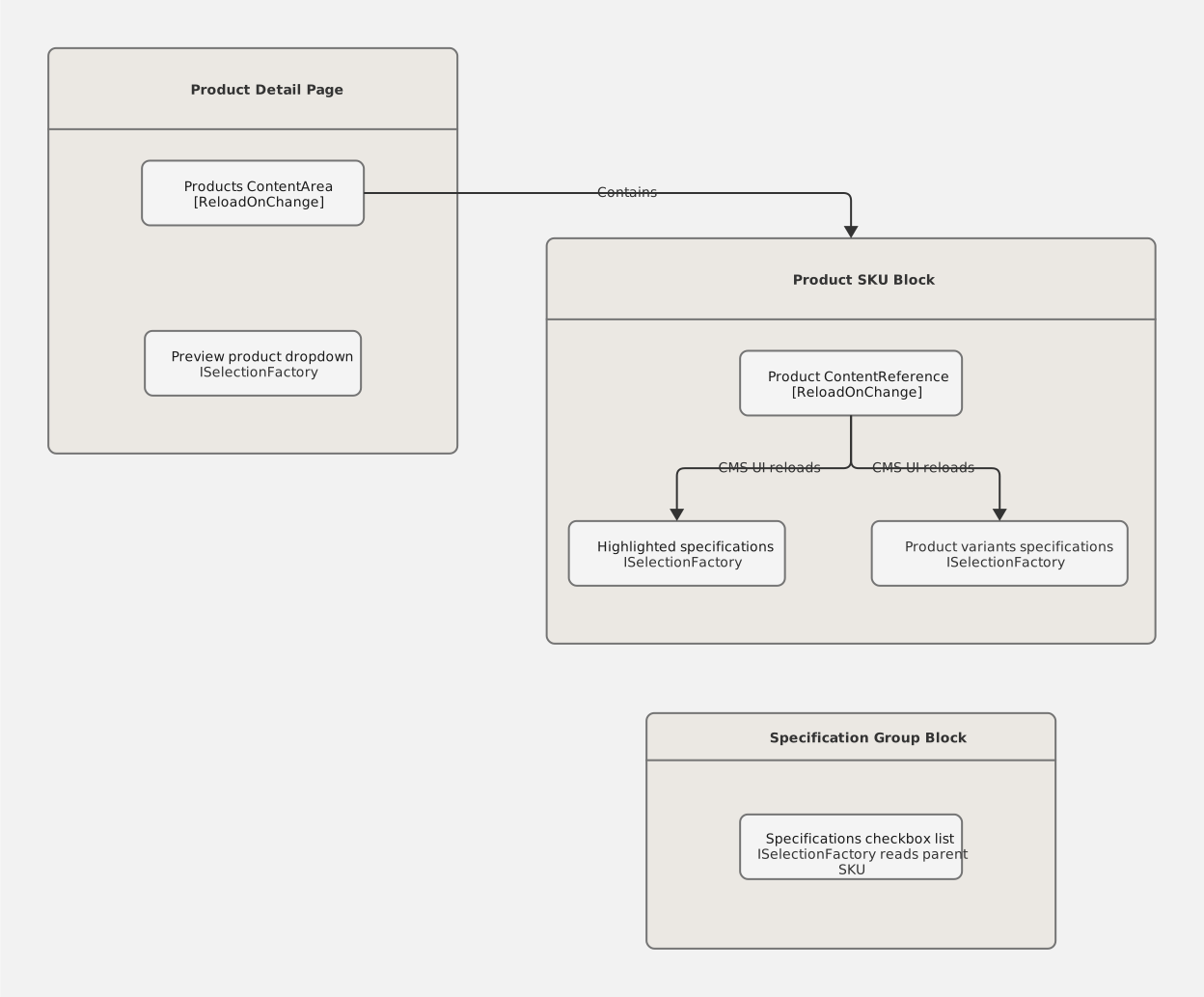
Everything above is CMS UI behaviour — handled by [ReloadOnChange] and selection factories. Anything beyond what is depicted is front-end routing and API resolution, which is a separate concern.
The preview requirement that ReloadOnChange does not solve
The user story also called for this: when an editor picks a SKU in the Preview product dropdown and hits Preview or OPE, the headless front-end should render the page as if that SKU's URL were active — even though Optimizely only knows the PDP's base URL.
That is a fair requirement. It is also not something [ReloadOnChange] delivers on its own.
| Layer | Responsibility |
|---|---|
[ReloadOnChange] on Products | Keeps the preview dropdown in sync in the CMS UI |
PreviewProduct property | Stores the editor's choice on the content item |
| Optimizely Graph / preview query | Exposes PreviewProduct to the front-end |
| Draft / preview route | Maps the selection to a product GUID and passes it into templates |
| Product blocks on the front-end | Load PIM data for that GUID |
We got partway there. The CMS side works — editors can select a preview product. The headless wiring was started but not fully shipped, for a practical reason unrelated to ReloadOnChange:
OPE does not support editing nested content items on a page in the way we needed.
Our PDP stores SKU configuration inside blocks within a content area. OPE cannot meaningfully edit that nested structure today. Without OPE on those blocks, investing heavily in per-SKU preview felt like polish on a feature the client could not actually use day to day.
Live traffic works differently anyway: the front-end resolves virtual SKU URLs via a custom API endpoint, not via the preview dropdown. That path is production-ready. The CMS preview path remains a known gap — and I think that is worth saying out loud, because it is easy to assume [ReloadOnChange] "includes Preview / OPE" when you read about editing context reloads. It refreshes the CMS UI. Your headless app still needs its own plumbing.
When to use ReloadOnChange
Good fit:
- Dependent dropdowns or checkbox lists on the same content item (or resolvable via
ISelectionFactorycontext) - Headless projects where you are not rendering OPE Razor views but still need a sane All Properties / settings panel UX
- Avoiding custom Dojo editors for "fetch options from another field"
Rule of thumb: put [ReloadOnChange] on the driving field, pair dependent fields with an ISelectionFactory, and resist the urge to put the attribute on the dropdown itself unless that field also drives further dependencies.
Less good fit:
- Quick Edit dialogs
- Initial content creation flows (plan for relaxed validation instead)
- Nested block editing that must react in real time without a parent reload — you may need the factory to read ancestor context, as we did for spec groups
- Headless preview / OPE — that is a separate integration
Older alternative (MVC / Razor OPE): Html.FullRefreshPropertiesMetaData() and AddFullRefreshFor() — see Edit hints in MVC. Same problem, different era.
Wrapping up
I went into this particular user story expecting to write custom CMS UI. I left with two [ReloadOnChange] attributes, a pair of selection factories, and editors who can configure complex PDPs without save-and-pray workflows.
It is not glamorous infrastructure or the show-stopper in a product demo. But it is the kind of small CMS affordance that makes content editors' lives noticeably better — and it is barely documented.
If you are building dependent fields in Optimizely and your first instinct is a custom EditorDescriptor, it might be worth an afternoon PoC with [ReloadOnChange] first. It has saved me from at least one rabbit hole!
Further reading
- Property attributes (Optimizely docs) — the official (brief) mention
- Refresh current editing context on property value change (Bartosz Sekula) — the post that sent me down this path
- Optimizely update 376 / CMS UI 11.36.0 release notes — when the attribute was introduced
- Edit hints in MVC — the MVC-era equivalent for OPE full refresh